Quick Start
Use this page as the main onboarding entry for new HPC users. If you received a welcome email with your initial credentials, keep that email handy as you follow this guide.
This quick-start covers both HPC4 (hpc4.ust.hk) and
SuperPOD (superpod.ust.hk).
Official pages for partition details, quotas, policies, and announcements:
Understanding the Cluster
What is an HPC cluster?
A cluster is many computers (nodes) connected by a high-speed network and managed as a single shared system. Hundreds of people use it at the same time.
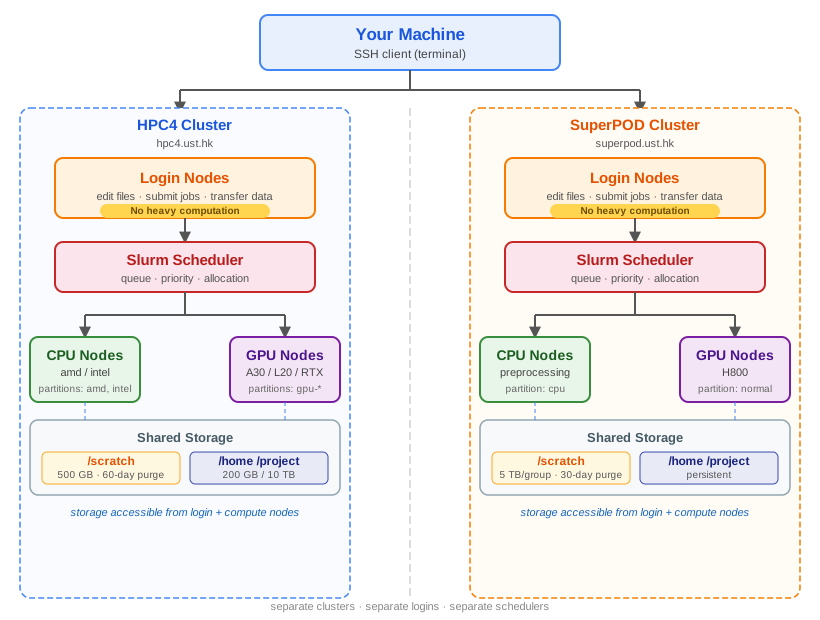
Login nodes — where you land when you SSH in. Shared by everyone. Use them only for editing files, light compiling, submitting jobs, and transferring data. Do not run heavy computations on login nodes — they will be killed by the system administrators.
Compute nodes — the machines that actually run your work. They come in CPU-only and GPU-equipped variants. You never SSH directly to them; instead you submit jobs to the scheduler.
Storage — network-mounted file systems shared across all nodes. Tier-1 (
/scratch) is fast but temporary. Tier-2 (/home,/project) is backed-up and meant for long-term data. Quotas and retention policies differ between HPC4 and SuperPOD; see the official pages linked above.
The scheduler: Slurm
Both HPC4 and SuperPOD use Slurm to manage access to compute nodes.
How it works, in plain English
You do not run big programs on the login node.
Instead, you write a batch script describing what resources you need
(CPUs, memory, time) and which commands to run. You hand that script to
Slurm with sbatch. Slurm returns a job ID immediately — you can
log out, go home, the job will run when resources are free.
$ sbatch my_job.sh
Submitted batch job 123456

$ squeue --me
  JOBID  PARTITION  NAME     USER  ST  TIME  NODES
 123456  amd        my_job   user  PD   0:00  1

# ... later, when the job finishes ...

$ cat slurm-123456.out
That is the entire mental model. The rest of this section explains the details.
Workflow
        graph TD
    you["① You<br/>write batch script<br/>request CPUs, GPUs,<br/>memory, walltime"]
    queue["② Slurm Queue<br/>jobs wait in line<br/>for available resources"]
    sched["③ Scheduler<br/>decides when and where<br/>your job runs"]
    run["④ Job runs<br/>on compute node<br/>(you may log out)"]
    out["⑤ Output files<br/>slurm-jobid.out<br/>in /scratch or /project"]

    you -->|"sbatch"| queue
    queue -->|"schedule"| sched
    sched -->|"allocate"| run
    run -.->|"async"| out

    style you fill:#dbeafe,stroke:#2563eb,color:#1e3a8a
    style queue fill:#ffedd5,stroke:#ea580c,color:#7c2d12
    style sched fill:#fee2e2,stroke:#b91c1c,color:#7f1d1d
    style run fill:#dcfce7,stroke:#15803d,color:#14532d
    style out fill:#dcfce7,stroke:#15803d,color:#14532d
Recommended workflow: start small, then scale up
        graph TD
    test["Test small<br/>short walltime, few CPUs"]
    check["Check output<br/>squeue / sacct<br/>debug errors"]
    scale["Scale up<br/>request more<br/>resources"]

    test -->|"inspect"| check
    check -->|"if OK"| scale
    scale -->|"resubmit"| test
    check -.->|"fix error"| test

    style test fill:#ede9fe,stroke:#7c3aed,color:#5b21b6
    style check fill:#ede9fe,stroke:#7c3aed,color:#5b21b6
    style scale fill:#ede9fe,stroke:#7c3aed,color:#5b21b6
The most common beginner mistake is requesting too many resources. Start with a tiny test, inspect the output, and only scale up when you are sure everything works.
Job size — smaller box = scheduled sooner
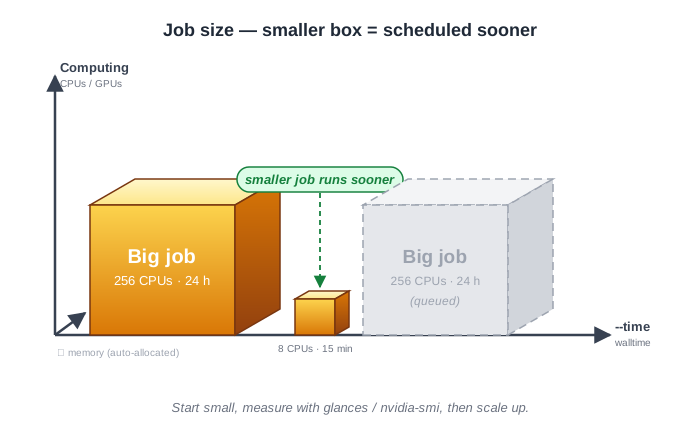
A job is a box of resources × memory × time. Smaller boxes fit into
gaps that larger jobs cannot use — this is called backfill scheduling.
Start small, measure resource utilization with glances or nvidia-smi, then scale up.
How to choose your first resource request
Resource |
Start with |
Slurm flag |
Scale up if |
|---|---|---|---|
CPUs |
4 |
|
your code uses more cores |
Memory |
auto-allocated |
do not set (both clusters allocate automatically) |
job is killed by OOM |
GPUs |
0 (CPU job) or ≥1 (GPU job) |
|
your code uses GPU libraries |
Note
On both HPC4 and SuperPOD, do not set --mem or --mem-per-cpu.
Memory is allocated proportionally based on the number of CPUs or GPUs
requested. Setting it manually can conflict with the scheduler.
Useful commands
Command |
Purpose |
|---|---|
|
Submit a job |
|
Check your jobs |
|
Job history / resource usage |
|
Cancel a job |
How to check if your job succeeded
$ squeue --me                # while waiting/running
  JOBID  PARTITION  NAME     USER  ST  TIME  NODES
 123456  amd        my_job   user  R    2:30  1

$ sacct -j 123456            # after job finishes
  JobID    State    ExitCode  Elapsed
  123456   COMPLETED  0       00:02:30

$ cat slurm-123456.out       # check your output
Hello from cpu42
Cluster vs your laptop
Your laptop |
HPC4 / SuperPOD |
|
|---|---|---|
Who uses it |
You alone |
Shared by hundreds of users |
Starting work |
Open a terminal |
Submit a job via |
Getting results |
Immediately |
After the job runs (queued) |
Software |
Install anything |
Load via |
File system |
Local SSD |
Network-mounted (NFS) |
GPUs |
Usually 0–1 |
Many, shared via scheduler |
Key differences between HPC4 and SuperPOD
HPC4 |
SuperPOD |
|
|---|---|---|
Login host |
|
|
Edge Spack |
|
|
Recommended approach |
Spack + Lmod modules |
Container-based (Enroot/Pyxis) |
GPU partitions |
|
|
CPU partitions |
|
|
See Software Support Overview (HPC4) and Enroot/Pyxis container runtime (SuperPOD) for more detailed software documentation.
Acknowledgement
Important
If your research makes use of HPC4 or SuperPOD, please include the appropriate acknowledgement in your publication, thesis, or presentation. Also send a copy or URL of your work to the cluster support team.
HPC4: The computations in this work were performed on the High
Performance Computing facilities, HKUST HPC4, provided by ITSO, The
Hong Kong University of Science and Technology.
→ hpc4support@ust.hk
SuperPOD: The computations in this work were performed on the
High Performance Computing facilities, HKUST SuperPOD, provided by
ITSO, The Hong Kong University of Science and Technology (HKUST).
→ spodsupport@ust.hk
Use the pages below as the main onboarding path. Each item includes a short description so readers can decide where to start.
Start here if you need the login host, authentication flow, VPN expectations, or a quick check that your account access is ready.
Use this page to understand where to store files, what each path is for, and how to move data in and out safely.
Read this when you need Python, compilers, MPI, or module commands, and want a practical starting point for the HPC software stack.
Follow this path for the shortest first success: create one small batch script, submit it, and confirm that it runs on a compute node.
Continue here after the first batch job works and you need GPU, MPI, interactive srun, or job-control commands such as squeue and scancel.